
Building End-to-End Workflows With Skydio Cloud APIs
Skydio Cloud APIs provide powerful tools for integrating autonomous drone operations into your existing workflows, enabling seamless incident response, real-time situational awareness, and media management. This guide walks through a complete Drone as First Responder (DFR) workflow using Skydio APIs, demonstrating how to:
- Inject markers for incidents – Automatically place location-based markers on the map to guide drone operations, whether triggered manually or through integration with third-party Computer-Aided Dispatch (CAD) systems.
- Respond to incidents in Remote Flight Deck and live stream your feed – Enable remote pilots to instantly respond to an incident location and provide real-time situational awareness using Skydio’s RTSP streaming and live telemetry capabilities.
- Retrieve and manage media files post-mission – Capture, store, and retrieve flight media using Skydio Cloud’s Media APIs to support documentation, evidence collection, or reporting.
By following this guide, you’ll learn how to interact with Skydio APIs to build an end-to-end DFR workflow. Each step includes the relevant API calls, expected responses, and best practices for operational efficiency.
Whether you’re integrating drones into public safety operations, enhancing security monitoring, or optimizing inspections, this guide will help you harness the full power of Skydio Cloud APIs to build scalable, real-world applications.
Try it YourselfWe’ve created an example GitHub repository with runnable code that mirrors parts of this guide. Use it to test API calls, understand responses, and see how the full DFR workflow operates in practice.
Step 1: Enable Relevant Settings
Before launching any flights or missions, ensure that the necessary settings are enabled in Skydio Cloud to give you adequate functionality for autonomous operations and data capture.
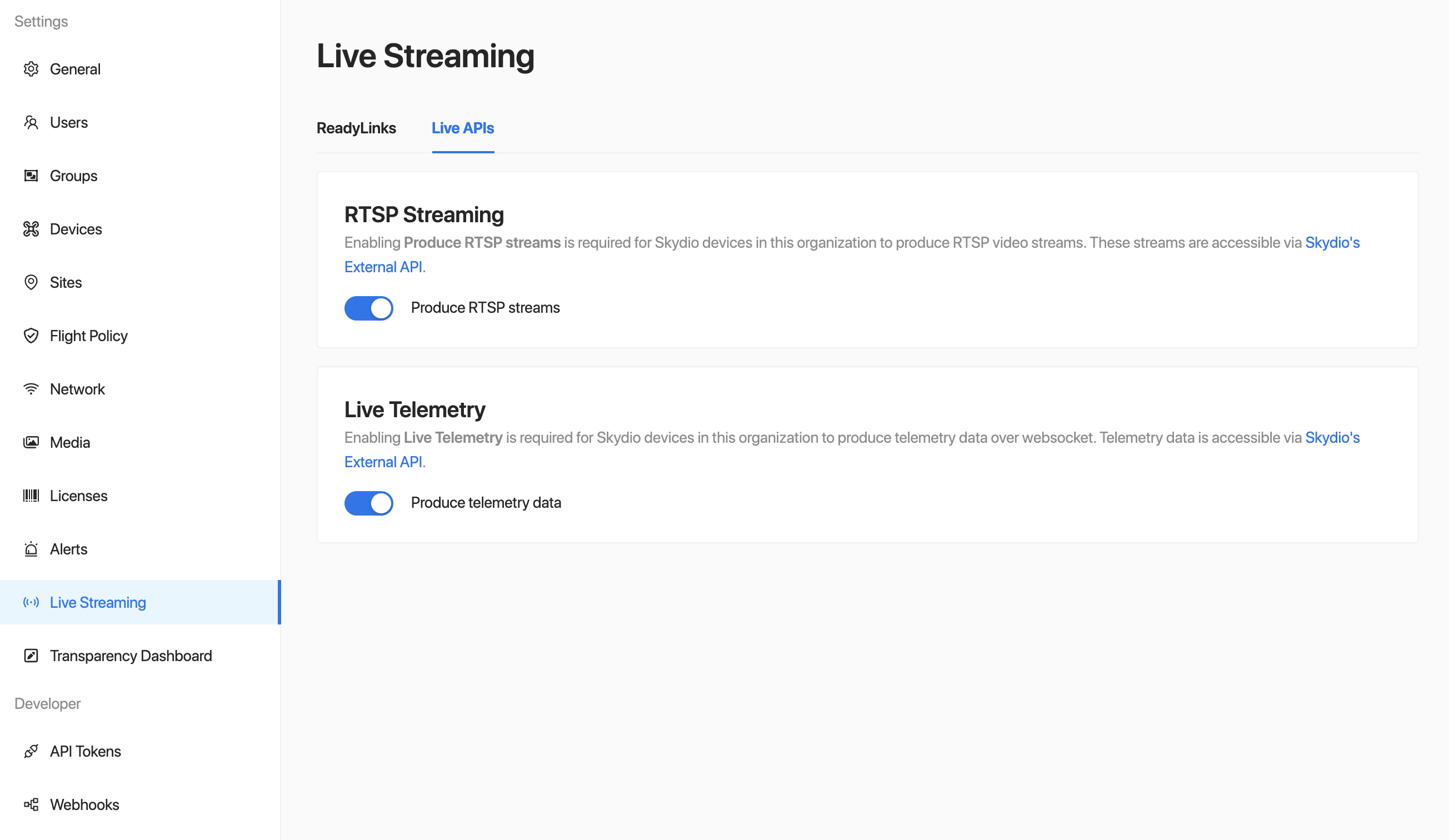
Ensure RTSP Streaming and Live Telemetry is enabled — this will allow video tracks for live-streaming vehicles and telemetry data for in-flight vehicles to be available via a Skydio External API web socket. To enable these, log into https://cloud.skydio.com and go to Settings > Live Streaming > Live APIs, and toggle on RTSP Streaming and Live Telemetry.
You will also use Skydio's APIs later in your workflow, meaning you will need to create an API token. To generate an API Token, log into https://cloud.skydio.com and go to Settings > API Tokens > Generate Token. You will need to be an Organization Administrator of your Skydio Organization in order to create API Tokens and assign them permissions. For more information on API tokens, visit Exploring Skydio Cloud's REST API.
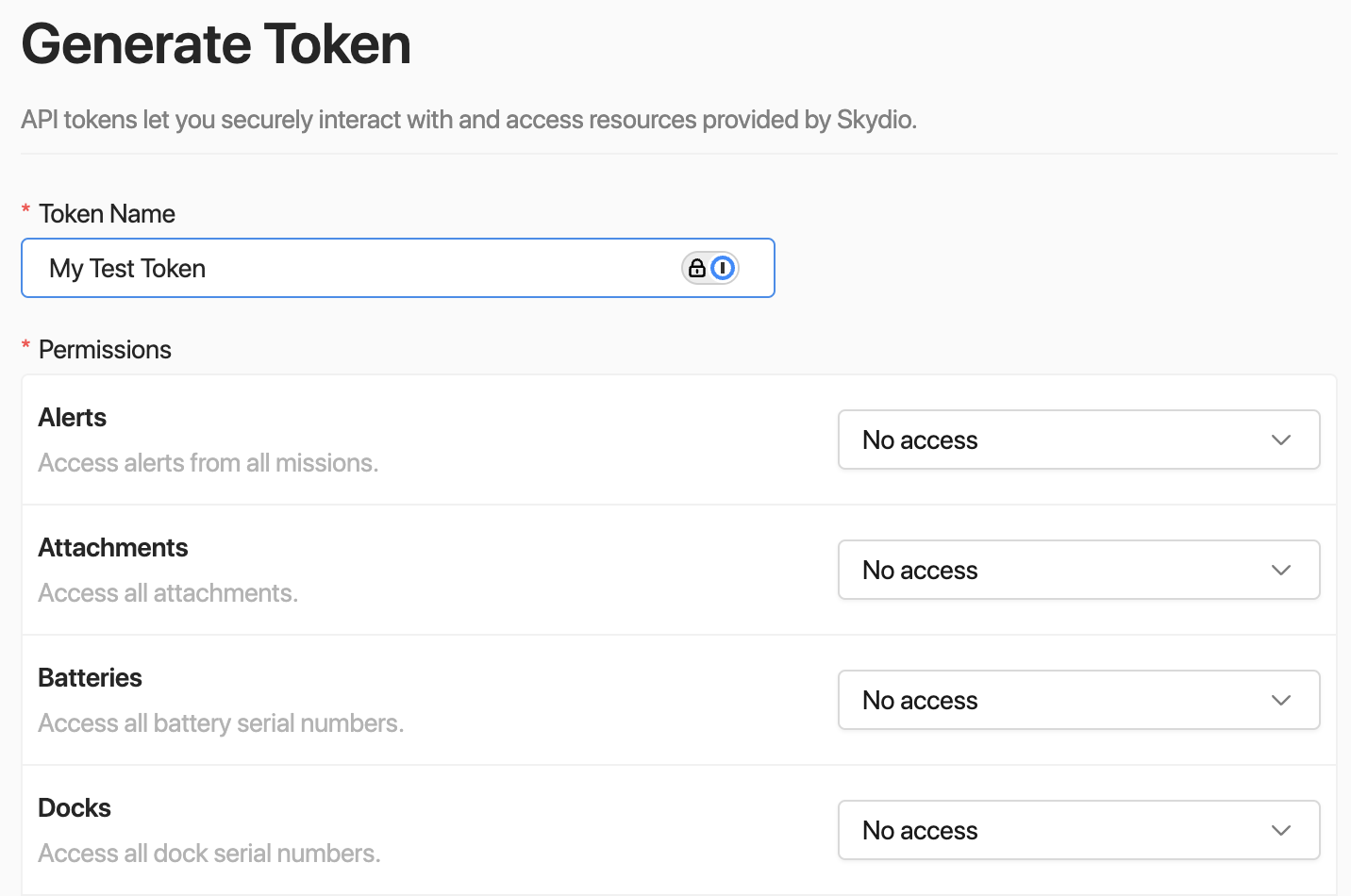
API Token permissions configuration.
For the purpose of this demo, create a token with the following permissions:
- Vehicles: read-only
- Flights: read-only
- Markers: read and write
- Media: read and write
- Live Stream: read-only
- Live Telemetry: read-only
Click Generate when done, and you will get a 1-time chance to copy your Token Secret. The Token Secret is what goes into the CREDENTIALS section of our API documentation, so copy and store this in a secure place. Once you navigate away, the secret will disappear forever. The token secret is what you will be using for most steps below.
⚠️ Treat your API Token Secret like a password. Do not share it or expose it in public repositories.
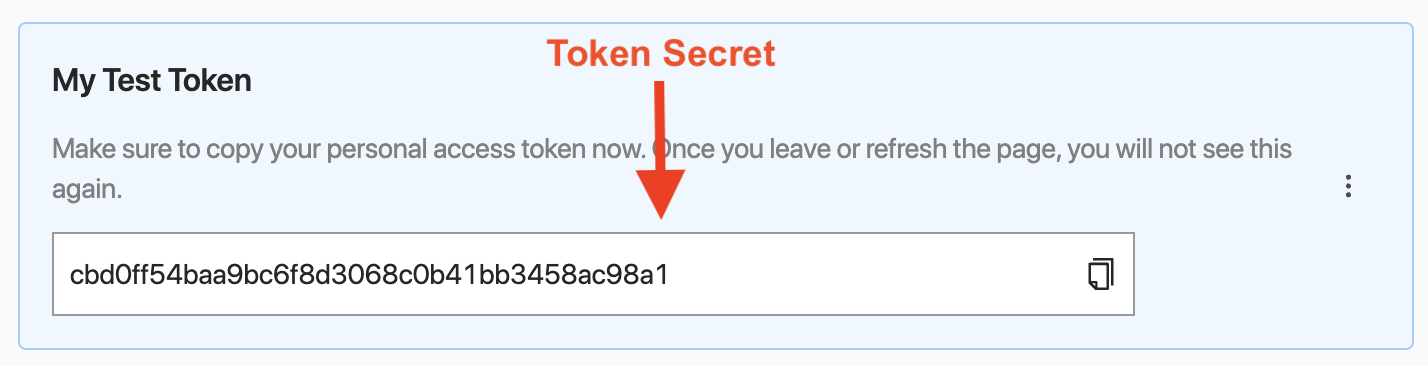
Token secret — copy yours immediately upon generating.
Please note that the token secret is different from the token ID, and you will also need to copy the token ID to use the RTSP Streaming API. You can do this by clicking the 3 dots to the right of your API token and selecting "Copy Token ID" as shown below. The token ID will not disappear like the token secret, so you have multiple chances to copy this.

Copy the API token ID now.
Step 2: Inject and Receive Markers, Respond to Incidents
In Skydio Cloud, Markers are used to represent a location of interest for a pilot to fly to. Markers are typically incidents like reported suspicious activities, or other key events during remote flight operations. Each marker is displayed on the map and can be easily flown to.
At this step, you will create a marker in Remote Flight Deck, simulating a real DFR mission. This allows you to visualize how incidents are marked and responded to in an operational scenario. You can integrate Skydio with your Computer-Aided Dispatch (CAD) provider to have incident markers injected automatically.
To test this out, start by opening up your simulator and starting a fresh flight. Click the "Toggle sidebar" button to open up the markers side bar. There should be an empty marker list since you haven't injected any markers yet.
"Toggle sidebar" button on the top left.
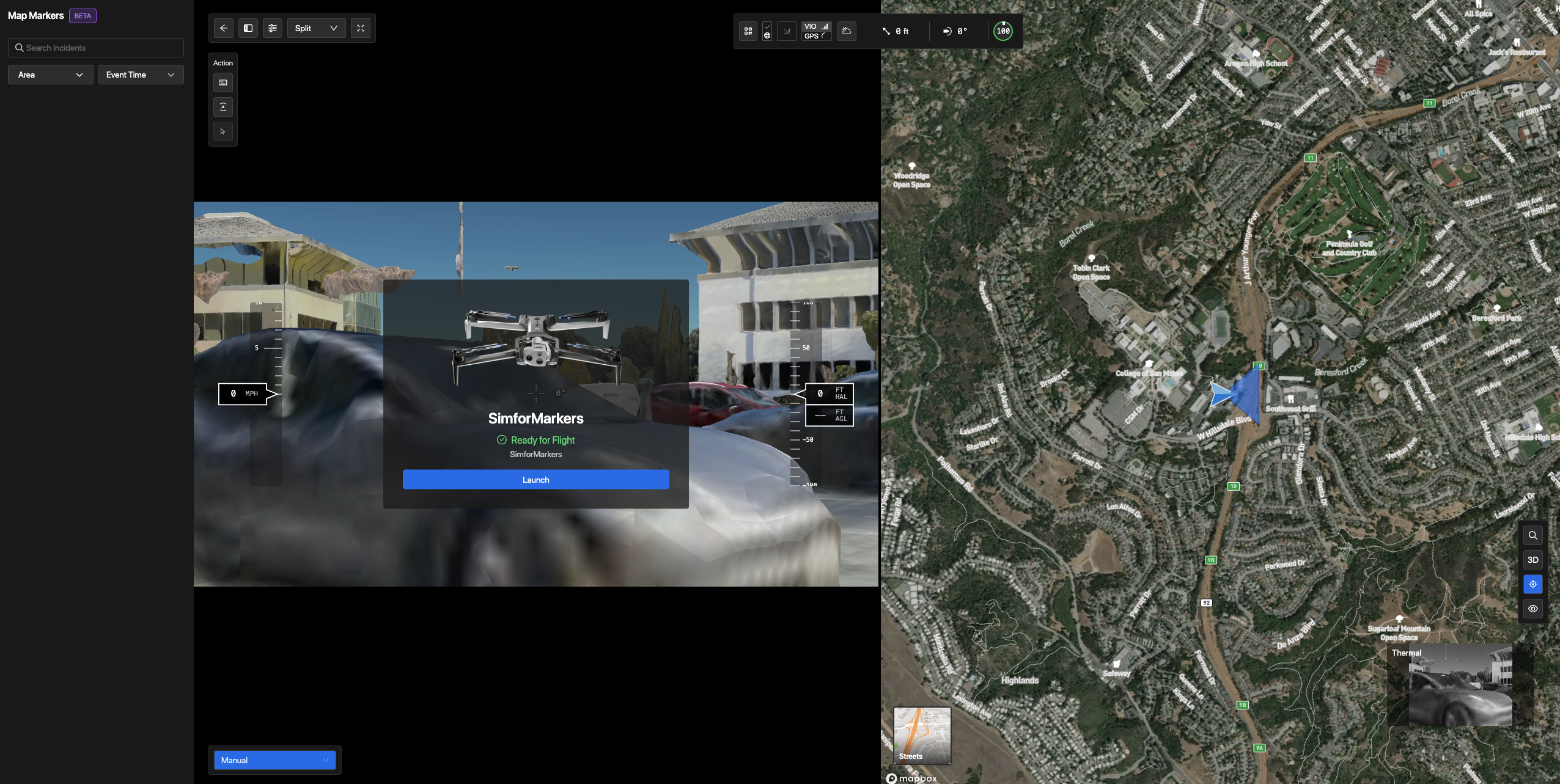
Map Markers sidebar with empty marker list.
- Go to the Upsert Marker API page and paste your API token secret in the credentials header.
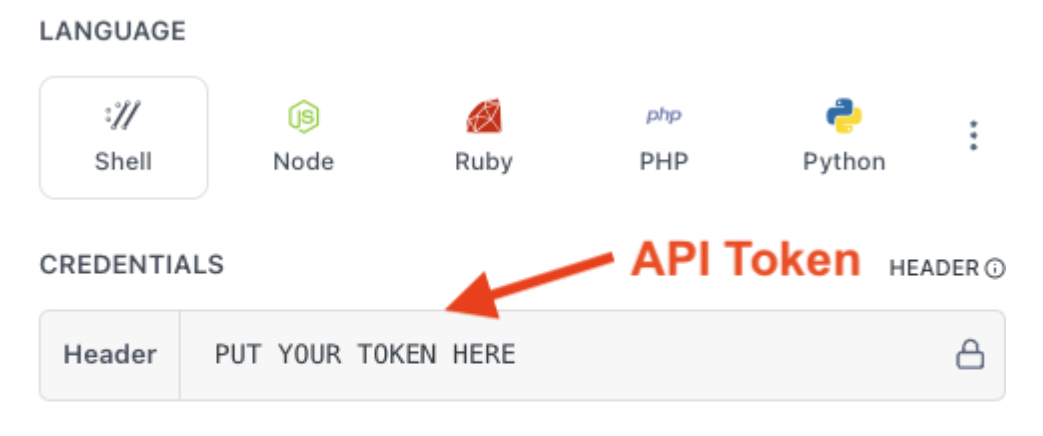
Your API token should be pasted in the credentials header as shown.
- Set the following parameters:
- Description: Suspect seen driving a blue sedan
- Event Time: Use today's date, but 15-30 minutes ago.
- Use a ISO 8601 formatted timestamp
- Example: 2025-02-27T09:30:00-08:00 for Feb 27, 2025 at 9:30am PST time.
- Latitude: 37.543
- Longitude: -122.3312
- Title: A car robbery in San Mateo, CA
- Type: INCIDENT
- Click "Try it!" — this should successfully create and inject a marker:
 with parameters filled out.](https://files.readme.io/93822166140e8f6053b800ef00c96d6c9104a89c5ef99b1d92d211a7b267356c-Screenshot_2025-02-27_at_4.08.16_PM.png)
Upsert Marker API with parameters filled out.
- Go back to Remote Flight Deck. You should now see a marker added in the left panel and on the map. Hover over a marker to see more details.
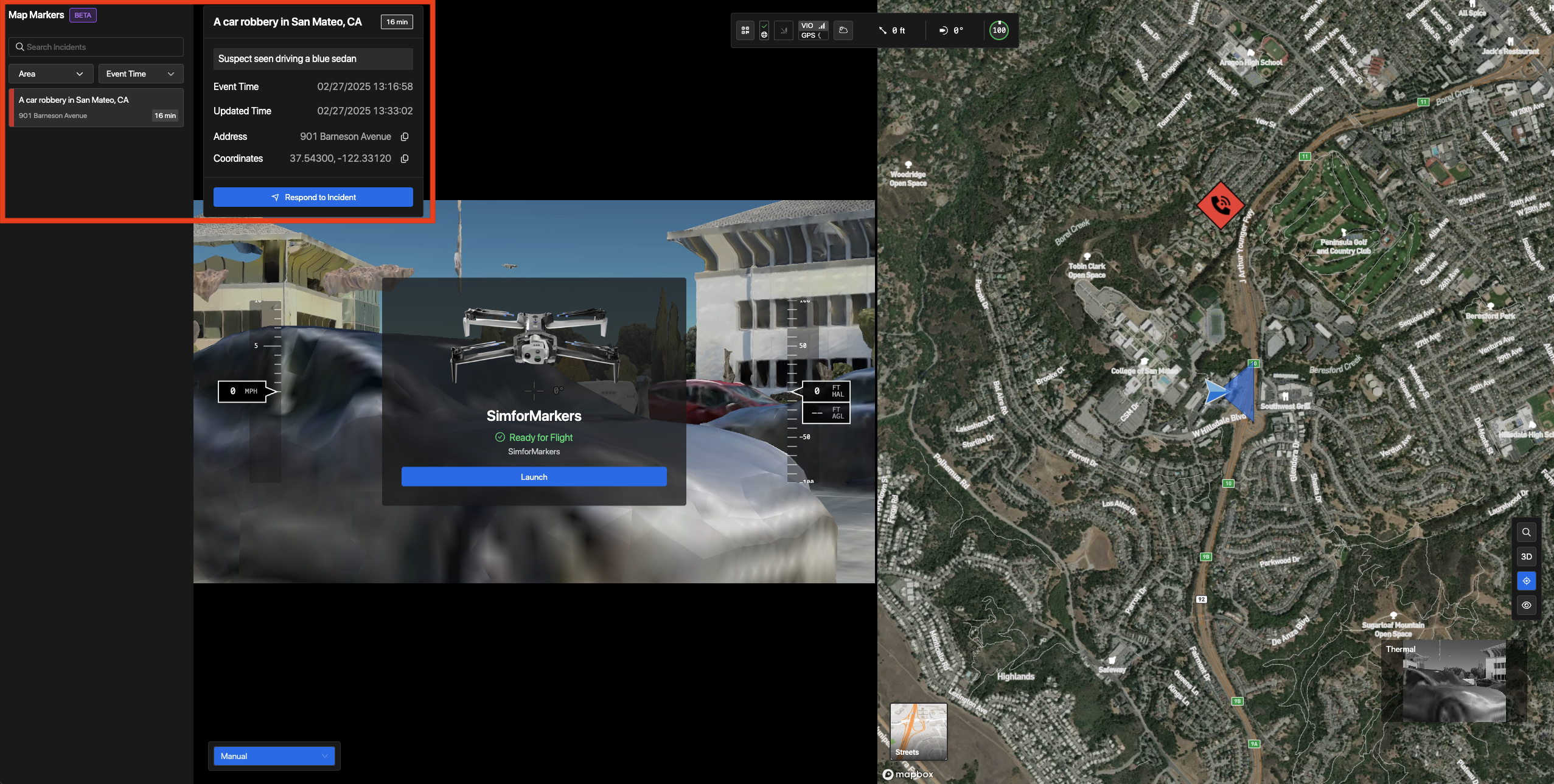
New marker shown in left panel.
- Hover over the marker on the left panel or on the map and click “Respond to Incident” — your drone will start flying to the scene of the incident.
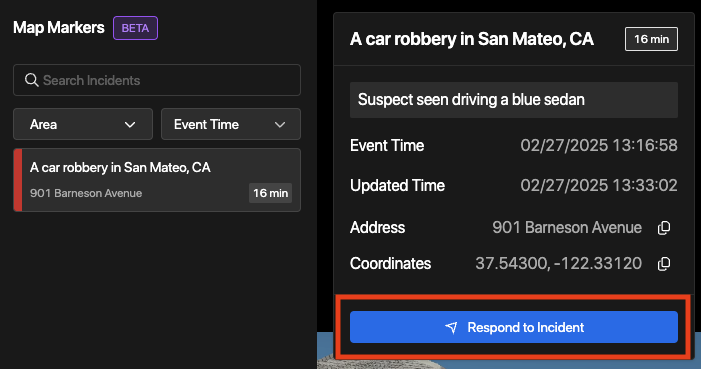
Option 1 to respond to incident - left panel
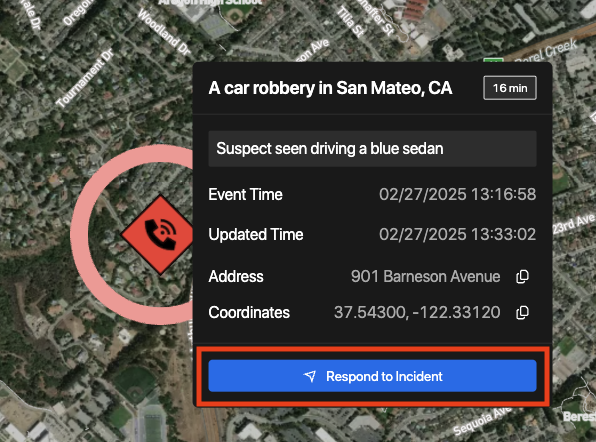
Option 2 to respond to incident - map
- As your drone flies towards the incident marker, a progress bar with time and distance to the point will be shown. The path to the incident marker will also be shown on the map.
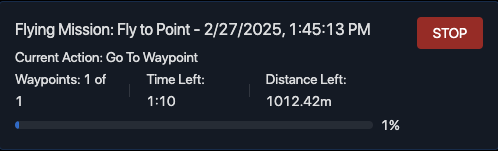
Progress bar showing time and distance left.
Markers can be immensely useful in streamlining your DFR workflow, allowing remote pilots to view and respond incidents directly in Remote Flight Deck.
API Example RepoView code samples for the Marker CRUD API
Step 3: RTSP Streaming & Live Telemetry
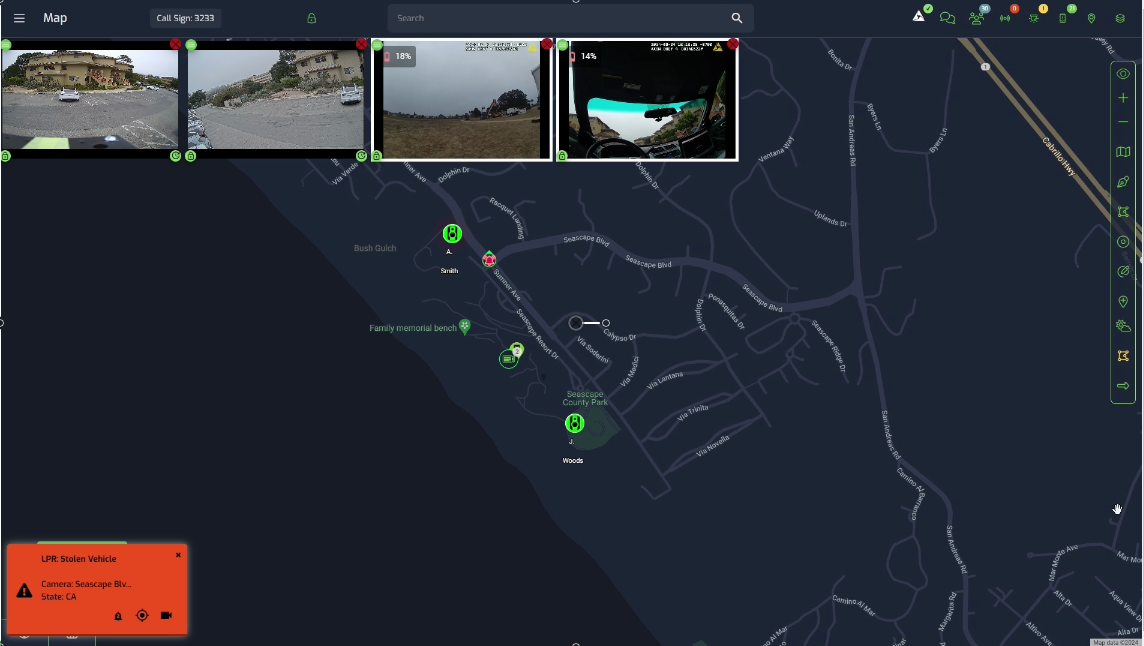
If you have a 3rd party system of record for real-time situational awareness, Skydio's Live Streaming and Live Telemetry web sockets can be used to stream video and drone location into those systems. This is especially useful for teams who want to monitor flights remotely, collaborate in real-time, or view thermal or color footage during DFR missions.
For more information on how to set this up, please visit the RTSP Streaming and Live Telemetry pages. To use the RTSP Streaming API, you will need both the token secret and token ID in step 1. Skydio provides everything you need to connect to a stream programmatically, and these streams are compatible with many popular video tools that support secure streaming.
Here is an example of how your stream may look in Fusus:
API Example RepoView code samples for Live Telemetry and RTSP Streaming APIs
Step 4: Flight Media
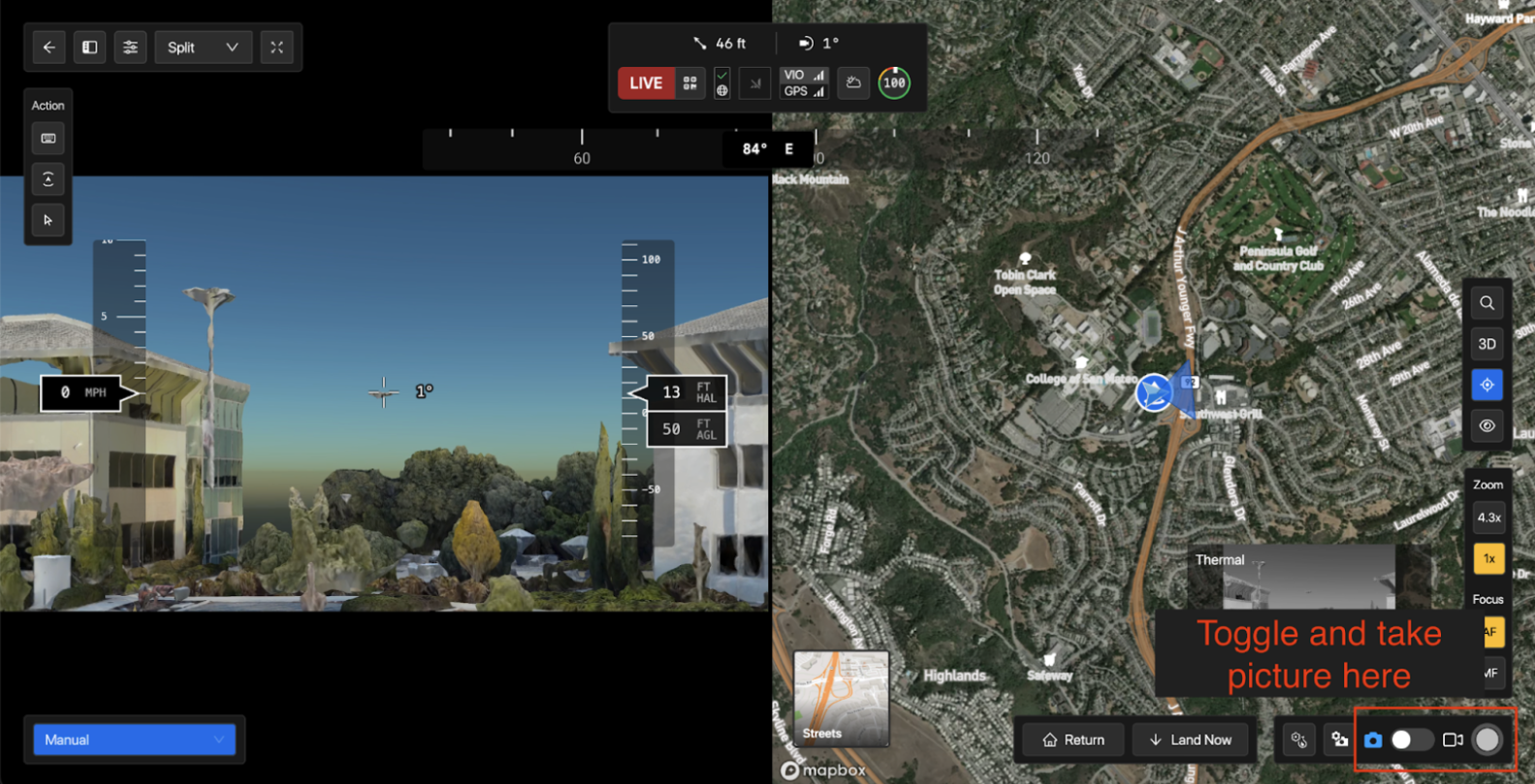
Video feed during flight is recorded automatically for mission documentation, but you may also want to capture still images in addition for further analysis or reporting in your DFR mission. In this step, we'll go over how to capture flight media, as well as how to access it using the Media APIs.
- To do this, switch to Picture Mode, then select the Shutter Button to capture a still image. The photo will be stored in Skydio Cloud and can be retrieved later for review or integration into your workflow.
- Upon returning to dock, your media should automatically be prepared and uploaded.
- To view your media after flight, you can use the Get Media Files API to see that the media now exists where it didn't before. You can query by flight_id to view media files per flight or by vehicle_serial for media files per vehicle.
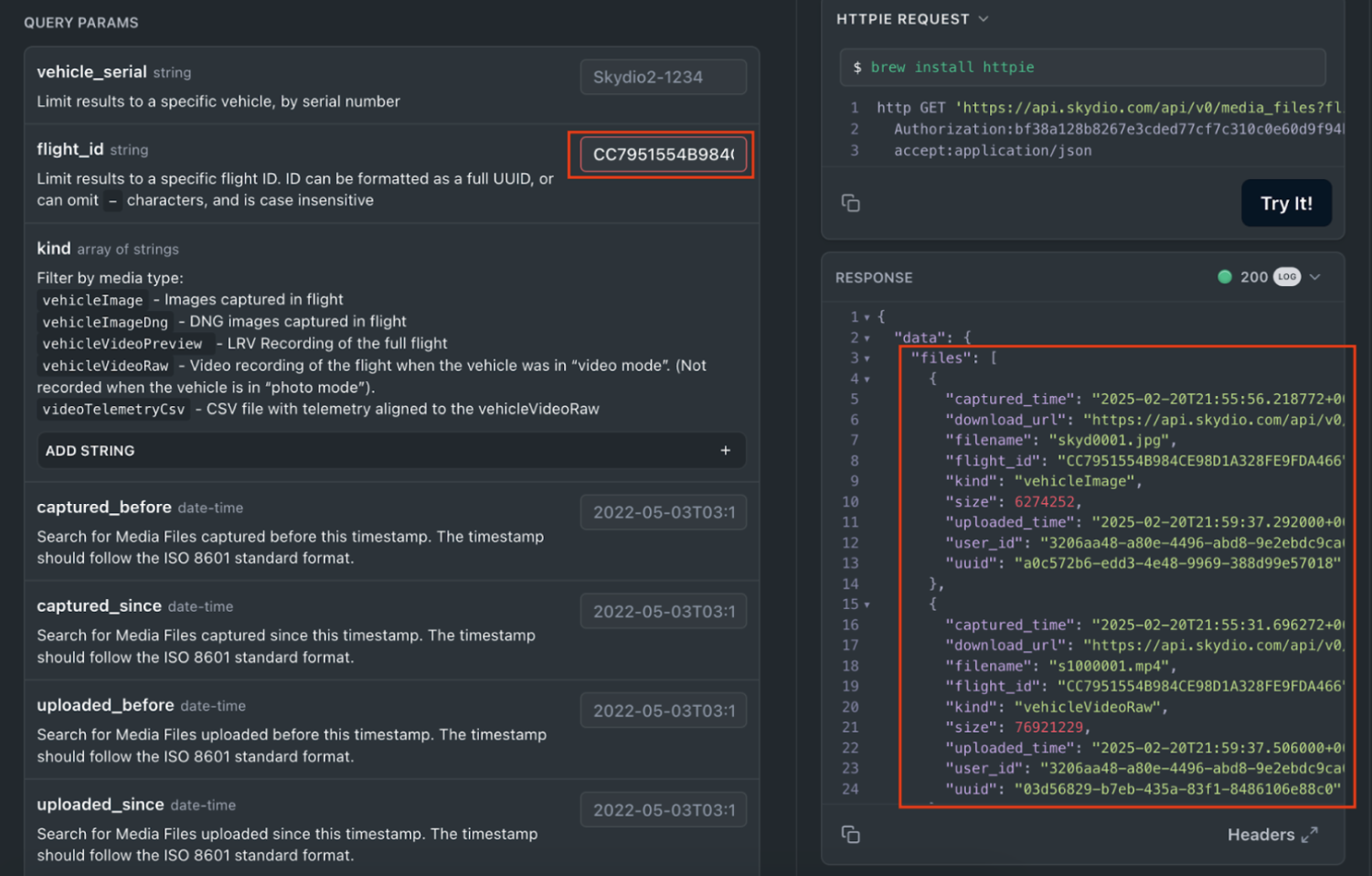
Example: querying by flight_id.
- For your mission, you may need to download or delete media captured during your flight for documentation or storage management. To do this, first copy the media uuid from the recorded files, as shown below. This unique identifier allows you to retrieve or remove specific media assets from Skydio Cloud as part of your post-mission workflow.
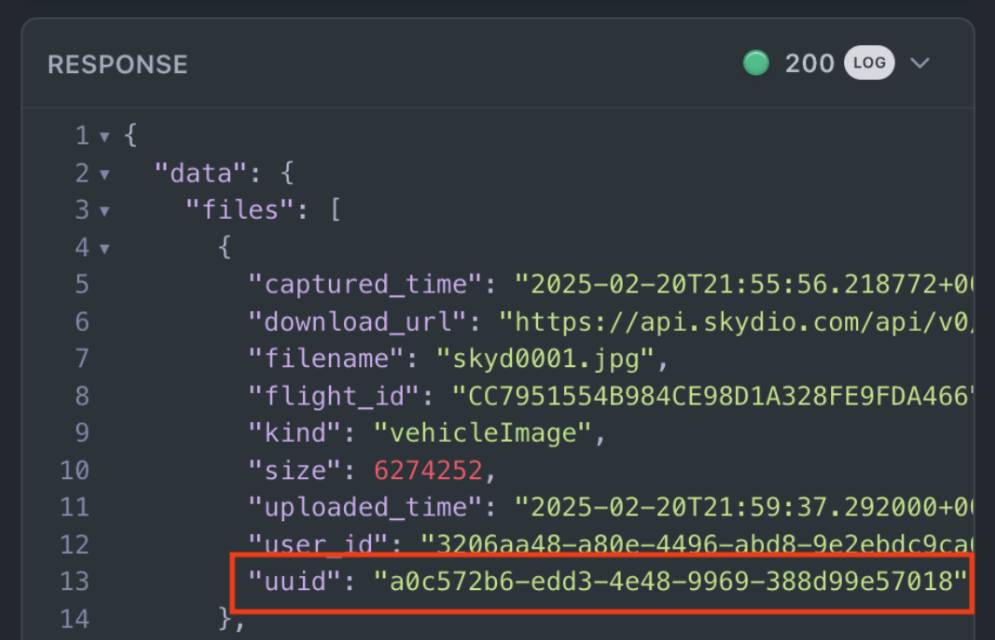
Copy the uuid without quotes.
- To download media, use the Download Media by ID API to download a file from Skydio Cloud. Paste in the uuid from the previous step and execute.
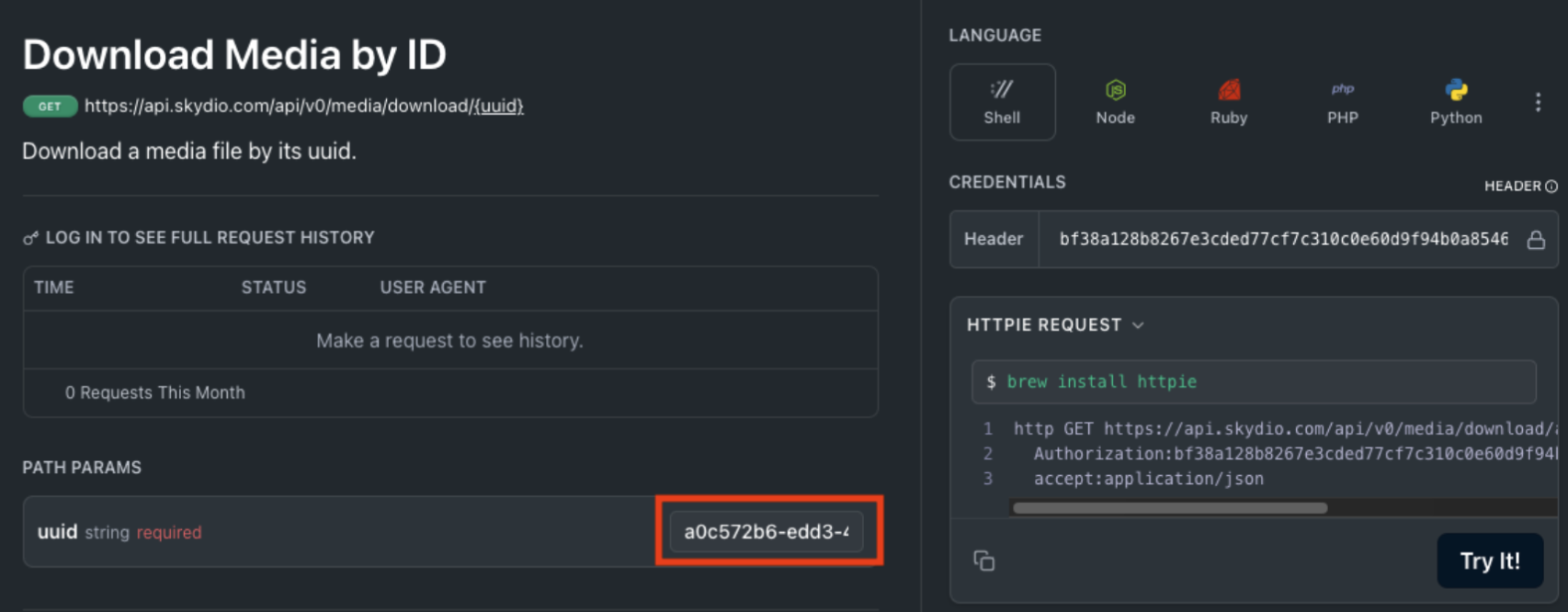
Paste the uuid from the previous step into the path parameter as shown.
- Use the Delete Media by ID API to delete the file in Skydio Cloud. Paste in the same uuid from the previous step and execute.
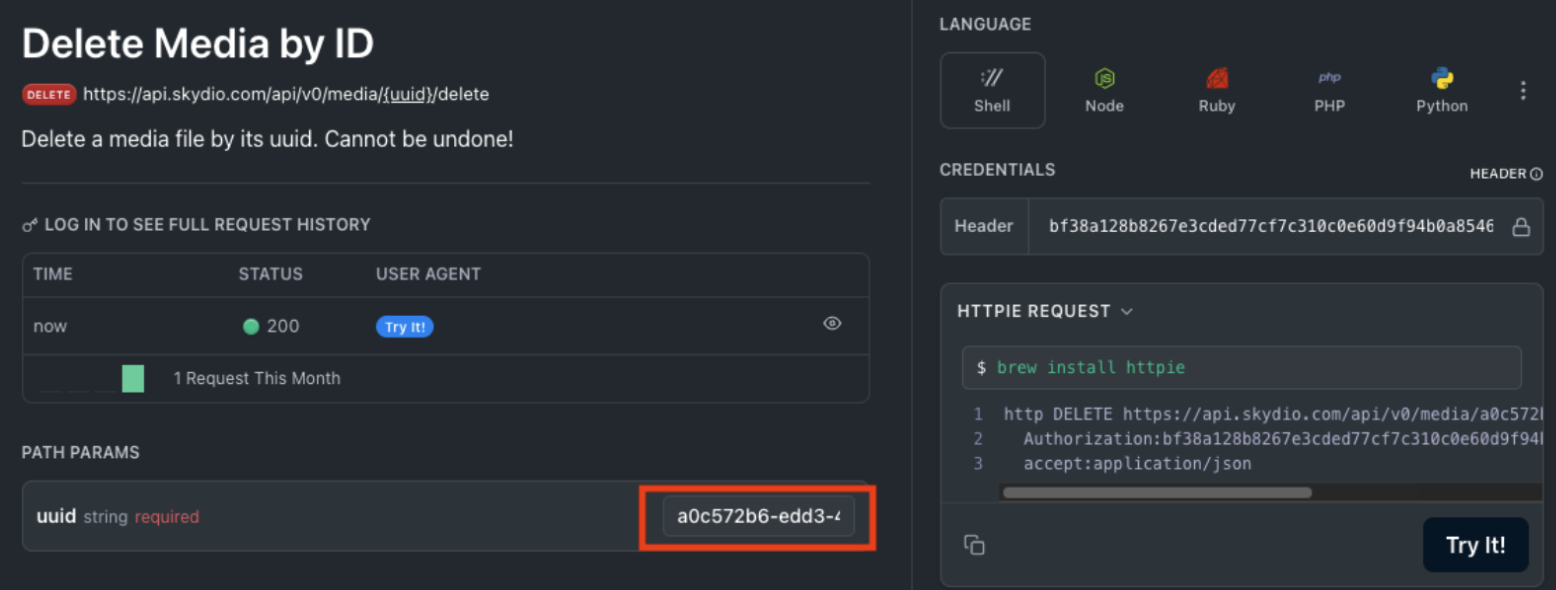
Paste the same uuid from the previous step into the path parameter as shown.
You may also wish to have your flight media automatically uploaded onto Axon Evidence for seamless transfer and management of images and videos. Skydio Cloud offers an Axon Evidence media integration to sync the media captured from your Skydio drone without manual upload. For more information, visit the "How to Integrate Skydio Cloud with Axon Evidence and Devices" page in Skydio Support.
API Example RepoView code samples for the Media Download API
Updated about 1 year ago