
Skydio Flight Simulator in Remote Flight Deck (Beta)
Operator Guide for Administrators and Remote Pilots
Introduction to Skydio Flight Simulator
The Skydio Simulator is a copy of the drone’s autonomy software but running on a virtual machine in Skydio Cloud’s AWS account. This means that pilots and integrators can safely fly simulators in city-like environments, try all the different settings that Skydio vehicles support, and see how those settings affect the flight experience. It’s the perfect way to practice, without consequences.
The Simulator is also able to emulate various Attachments and Sensor Packages. This means that to Skydio Cloud and Controllers, the Simulator interacts and populates data as if it were the real thing. This also means that third-party integrations can be built using Skydio Cloud's API and the Simulator to generate data and events without being hardware constrained.
Because the Simulator creates data like a real drone, we recommend avoiding intermixing your real drones and docks with simulated ones. To get started, please contact Skydio Support or your Customer Success Manager to get a dedicated Skydio Organization.
The Fast and Easy Version
- After logging into Skydio Cloud, you will land on the Fleet page. Click the
Create Simulatorbutton in the top of the left hand panel. - In the Create Simulator modal, name your simulator and then hit
Create. - Select your simulator and wait 5-10 minutes for it to come online.
- Once your simulator is online, you can click
Fly Nowwhich will bring you to the flight screen. - Dismiss the message about the setup flight, and then launch!
Creating a Simulator
Once you have a dedicated Skydio Organization for your simulators, you create them by going to do the Devices page in Settings, and clicking on the "Create Simulator" button in the top right of the page.
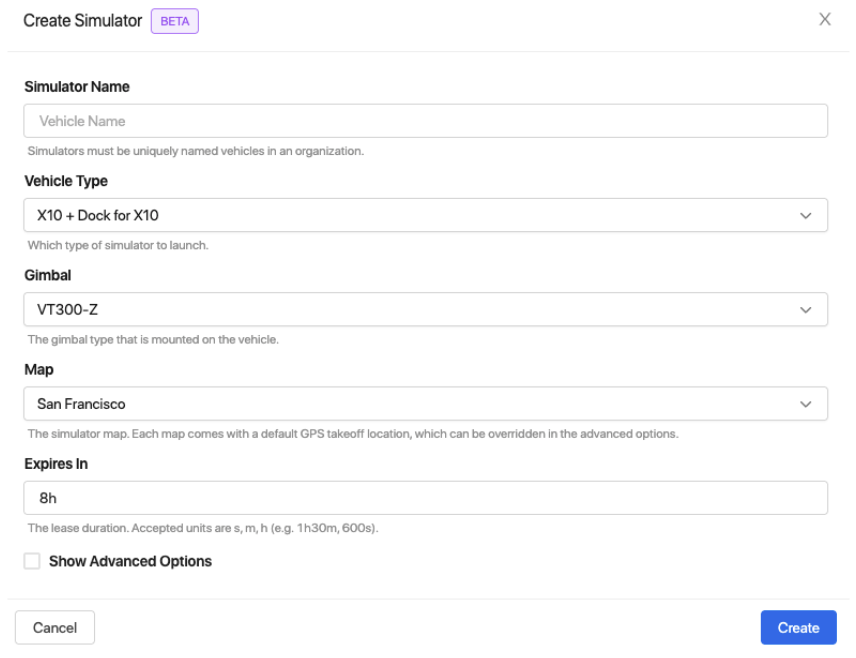
Settings --> Devices --> "Create Simulator" in the top right of the page
- Name: Name the simulator using the conventions that make sense to you
- Vehicle Type: X10 vs X10 + Dock for X10
- Map:
- San Francisco: a 40KM^2 3d model covering from Twin Peaks to the Giants Stadium. This map is good for seeing how varying ground elevation affects autonomy.
- New York City: a 30km^2 3d model around Central Park. This map is good for high density urban areas, especially navigating around skyscrapers.
- Expires In: the underlying virtual machines that run the simulators auto-delete themselves after a number of hours to reduce waste.
Advanced Options exist as a way to further customize your drone. We recommend not adjusting these settings except for Attachments.
- Software Version: allows you to swap between different versions of the simulator. This is meant for internal testing.
- Takeoff: this allows you to set the physical orientation of your simulator. This is meant for internal testing.
- Attachments: this allows you to add attachments to your vehicle. Note that the creation screen limits you to what is physically possible to mount, however it is still possible for the software to refuse to fly.
Example: you can physically attach two spotlights to a real drone, but the autonomy code will prevent you from taking off. The simulator works the same way. - Additional Options:
- Remote ID Exempt: this allows you to toggle if RemoteID is enabled for this vehicle.
Once you click create, the simulator vehicle, dock, gimbal, and attachments will appear in your fleet inventory. You may need to refresh the Fleet map view. It takes 5-10 minutes to fully boot up a simulator in our Cloud. If you click on a simulator in the Fleet map view, you'll see an additional panel that gives you the status of the simulator.
Simulator Status Panel
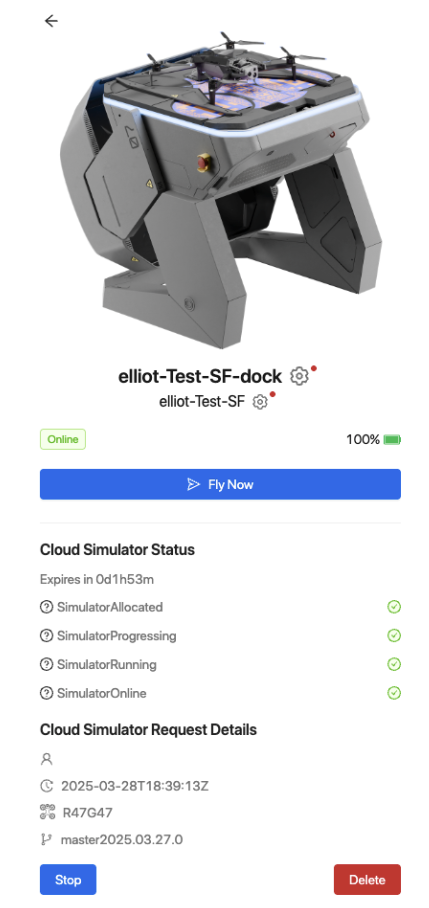
Cloud Simulator Status
This panel shows the progress of the simulator in its boot process. This process takes 5-10 minutes, depending on some internal factors. When all the lights are green, your device will be online and ready to fly!
Sometimes the simulator's autonomy code will perform a quick reboot when it first comes online and receives new configuration from the cloud, so don't panic if the simulator goes offline briefly after coming online.
You can safely Stop/Start the Simulator at any time, but this process is similar to launching a new simulator, so the process may take 5-10 minutes. If the simulator won't come online, even after a reboot, try launching a new one.
Known Issues
Under most circumstances: issues can be worked around by
- waiting (temporary errors will clear)
- exiting/re-entering the remote flight deck (the pilot view)
- stopping/starting the simulator
- creating a fresh simulator
This project is very ambitious, and it is running our entire drone autonomy software stack on a virtual machine. The advantage here is that the simulator offers as close to a perfect representation of the vehicle as is possible. The disadvantage is that there are code paths that work 100% of the time on a physical vehicle, but fail when run on a virtual machine in AWS. We believe we can work out most of these bugs with time.
On initial creation
- Refresh your browser, if the simulator doesn’t show up on the fleet page.
- Wait for a couple minutes after the simulator first comes online. It will go through a reboot cycle as it gets new configuration from the Cloud. This appears as the “Fly Now” button being disabled, and then the drone going online/offline. This is expected.
During takeoff (in remote flight deck)
- If flight is blocked, try the wait/re-enter/restart/recreate technique. Skydio autonomy code is built with the mindset of: if anything appears unsafe, block flight. The simulator suffers from being just different enough to trigger some flight-preventing safety flags.
During landing
- Always return-to-home to land. The Simulator will currently clip through buildings or the ground, except where it initially took off. We are actively working on improving our physics simulation such that this is handled better. If you do clip through the world, you will need to Stop/Start to get the simulator back above the world again.
Vehicle features that are not fully representative
- Batteries - these are always set to 100% power so you can fly indefinitely. We are working on a realistic battery model that will be coming out in the next several months.
- Connectivity - the connection between the simulated vehicle, simulated dock, and cloud is always established without any latency or disconnects at any range. Note that the icons that indicate signal strength do not function. We will be releasing the ability to simulate poor connectivity or disconnects in the next several months.
- GPS - since the simulator is not in the physical world, we simulate a strong (but not perfect) GPS signal. For example, we don’t simulate urban canyons.
- Attachments - spotlight, nightsense, parachute, and RTK/GPS will show up in the cloud as if they exist, but toggling their features doesn't have any visual effect on the world.
- For example, if you have a spotlight attachment, you can “turn it on”, but it won’t shine a bright beam of light.
- Thermal - the thermal view of the gimbal is just a grayscale image of the main camera. To truly simulate thermal, we would need to simulate heat which would be a very large engineering feat.
Vehicle features that are not yet supported in the simulator
- External Radio - external radio is a connectivity solution, and doesn’t provide much value in a simulated world.
- OTAs - you cannot update a simulator with an over-the-air update. The autonomy code recognizes that there is an official update available, but attempting to trigger the update will not do anything.
- Weather information or Night Flight - it is always sunny in the Skydio Metaverse.
- ADS-B - we are planning a future release where we will support generating simulated ADS-B alerts from nearby simulated aircraft.
- Dock for X10 preflight drone inspection - Our simulated Dock does not support cameras, so pre-flight inspection or other dock camera workflows aren’t possible.
Updated about 1 year ago
What’s Next
Once you've launched the simulator, feel free to follow our other guides that step through how to interact with Skydio Cloud's various APIs