
Exploring Skydio Cloud's Webhook API
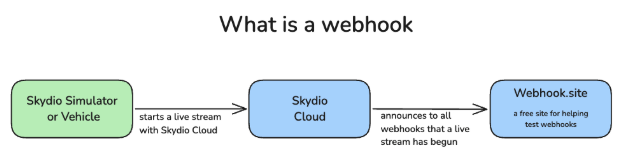
Skydio API documentation on Webhooks
A webhook is like giving your car mechanic your phone number and asking them to call you when your car is ready. This saves you the trouble of calling your mechanic every 30 minutes and asking if it’s done. In the case of drone integrations, a really common use case is wanting an alert when a drone begins streaming so that you can start streaming video into a video management system (VMS) like Genetec.
In this exercise, we are going to have you use a free site (webhook.site) to create a webhook, that will listen for announcements about your simulator starting and stopping it’s livestream. As you launch and land the drone, you’ll be able to watch the data (json) flow from Skydio Cloud to your alert on webhook.site.
Step 1: Create your webhook on webhook.site
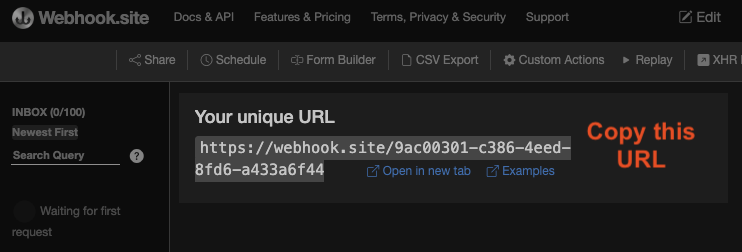
https://webhook.site - a free site for testing webhooks
Go to https://webhook.site and copy the unique webhook URL. When Skydio Cloud calls this webhook, webhook.site will put the data into the left hand panel. Keep this tab open, as it will be the place we will come back to this page to view the events
Step 2: Register the webhook in Skydio Cloud
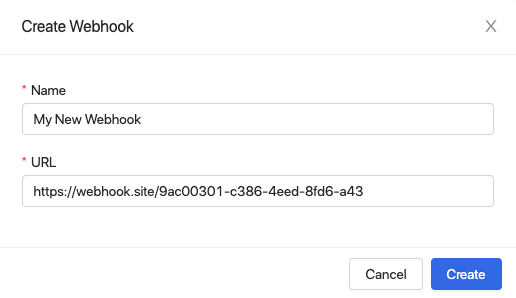
Settings > Webhooks > Create Webhook
Now that we have a webhook, we need to register it with Skydio Cloud. This is the step where you tell your mechanic your name and number, so that they know who to call.
- Go to cloud.skydio.com (login if necessary)
- Go to Settings > Webhooks > Create Webhook.
- Give your webhook a name and paste your webhook URL in the next box.
- Click Create, and the webhook should now be in your list of webhooks.
Step 3: Add an alert for livestreaming
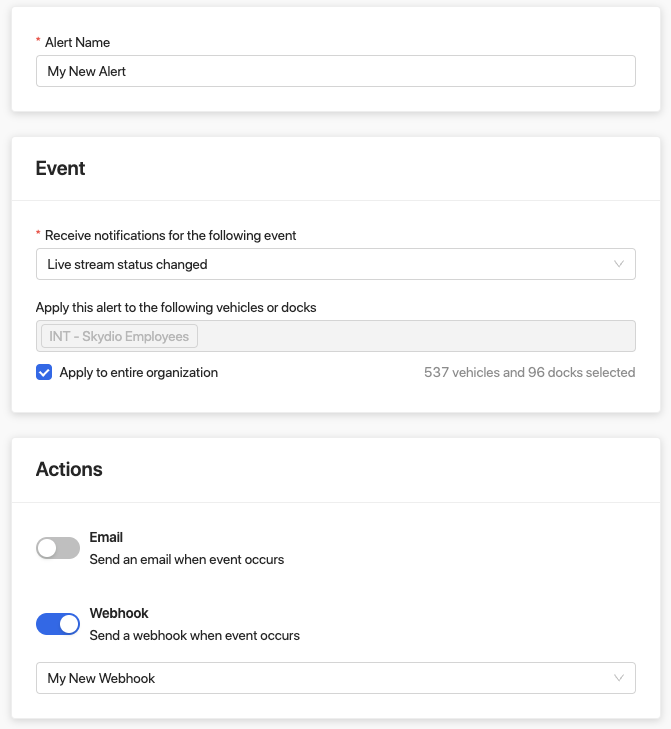
The Add Alert screen for configuring event-driven notifications
Next, we need to configure Skydio Cloud to send alerts for livestream events to your webhook. Skydio supports many different types of events for things that happen
- Go to Settings > Alerts > Add Alert
- Give your alert a name.
- Set the Receive Notifications to “Live stream status changed”
- Set “Apply to entire organization” (or just your simulator, if you prefer)
- Enable Webhook, and select the webhook from the previous step.
- Click create
Step 4: Fly and see the webhook payloads
Now that you've created a listening webhook and registered it with Skydio Cloud, whenever your simulator starts or stops it's livestream it will send a small payload of data toward your webhook. Our API documentation will tell you what to expect for each webhook payload.
](https://files.readme.io/01a67e46a640a693669235c5b2279db47c9ae1a9b7d941e3f7bb507c33bc2b67-image35.png)
Example payload for Live Stream Status changes. Link
Above is the sample payload that will get sent when a LIVE_STREAM_START event is triggered. Notice that it has relative information such as the status change, the RTSP url, the vehicle name, what type of stream, and what time it occurred. This could be used to automatically activate an RTSP viewer to begin live streaming the drone. To see this yourself, you just need to trigger a fresh flight.
Go back to Skydio Cloud and launch a fresh flight. While you are doing this, keep watching your webhook.site page. Once the drone has taken off, the event for a fresh live stream will trigger.
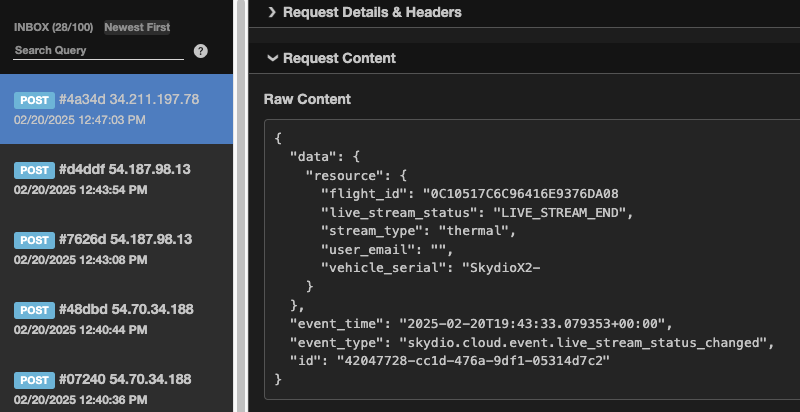
An example of several back-to-back live stream start and end events
The "Raw Content" should match the specification that is in our API documentation for webhook request formats.
Updated about 1 year ago