
Exploring Skydio Cloud's REST API
This guide starts with a high-level overview of what APIs are and how they work, then walks you through a step-by-step example using Skydio Cloud’s API. It’s designed for people who are new to APIs and want a practical introduction. You can find the technical documentation for our APIs here.
Introduction to our API
APIs are how different software systems communicate together. It's a contract where one system says:
Overview: details on how our API works and implementation guidance as your code gets more advanced.
Webhooks: for a feature outside the scope of this document.
Skydio Cloud API: the list of every API endpoint for Skydio Cloud, organized into categories.
Streaming: a special set of web-socket based APIs for doing video and telemetry streaming.
Exploring the Skydio Cloud RESTful API
A RESTful API works similarly to how you would order food at a restaurant. You don't just walk into the kitchen and cook your own meal. Instead, you follow a structured process:
- The menu is a list of available options (the API’s endpoints).
- You fill out an order form specifying what you want (making an API request).
- The kitchen processes your order (the server handles the request).
- The waiter brings you the food (the API sends back a response).
Just like every restaurant has its own unique menu, each API has its own set of endpoints and rules. In the case of Skydio, our APIs are designed to give you structured access to data and functionality through Skydio Cloud. You can find all of Skydio's API endpoints in our API documentation under the Skydio Cloud API section. Our API's are grouped into categories and the API token permissions apply to all endpoints in that category.
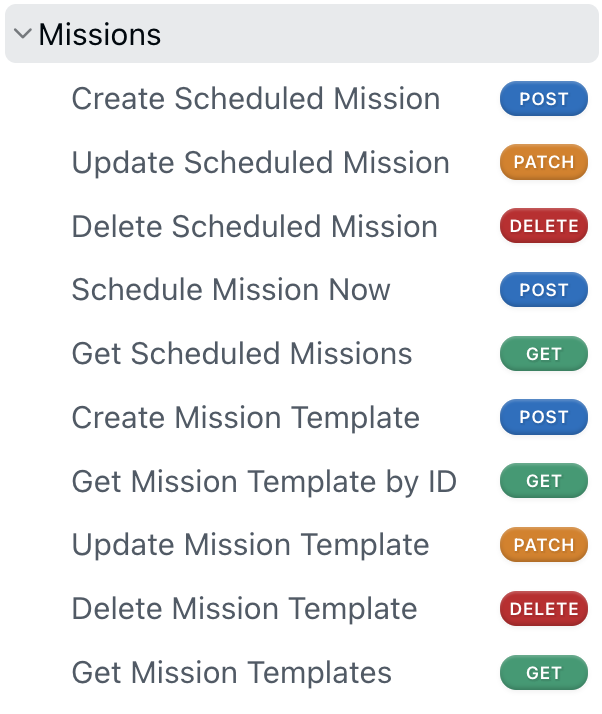
RESTful API endpoints all have a type. These types set an expectation as to what will happen if you use this endpoint:
GET: Retrieve Data a read endpoint that retrieves you a information without taking any action.
POST: Take an action a write endpoint that changes some aspect of the software system by either creating data or taking an action.
PATCH: Update existing data a write endpoint that specifically updates existing data in the system.
DELETE: Delete data a write endpoint that deletes data from the system.
Exploring an individual endpoint
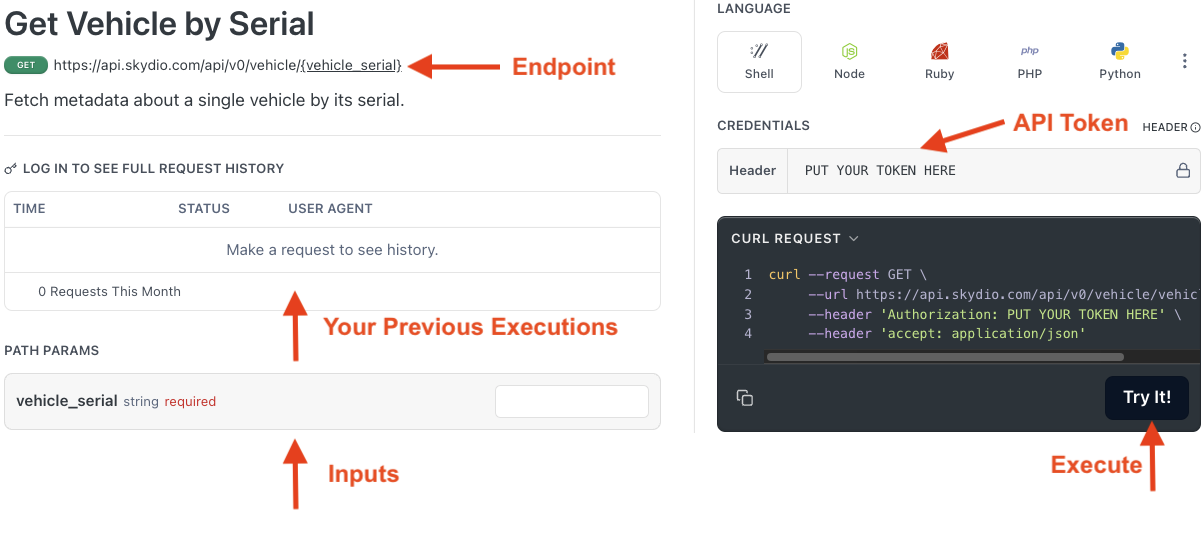
Our documentation is meant to be interactive. It doesn't just give you a description of exactly how the API works, but gives you a form you can fill out to execute the API, without needing any set up on your computer. We are going to use this page throughout the rest of this tutorial.
- Endpoint: the URL for this endpoint. Notice that this value is in the CURL REQUEST section on the right.
- Previous Executions: useful for reviewing different inputs and outputs
- Inputs: the information (parameters) needed by the API in order to execute.
- API Token: where you will copy your Token Secret for executing the API.
- Execute: send the Inputs to the Endpoint with your Token Secret
Creating and Managing API Tokens
To use our API, you first need to generate an API Token. To generate an API Token, log into https://cloud.skydio.com and go to Settings > API Tokens > Generate Token. You will need to be an Organization Administrator of your Skydio Organization in order to create API Tokens and assign them permissions.
⚠️ Treat your API Token Secret like a password. Do not share it or expose it in public repositories
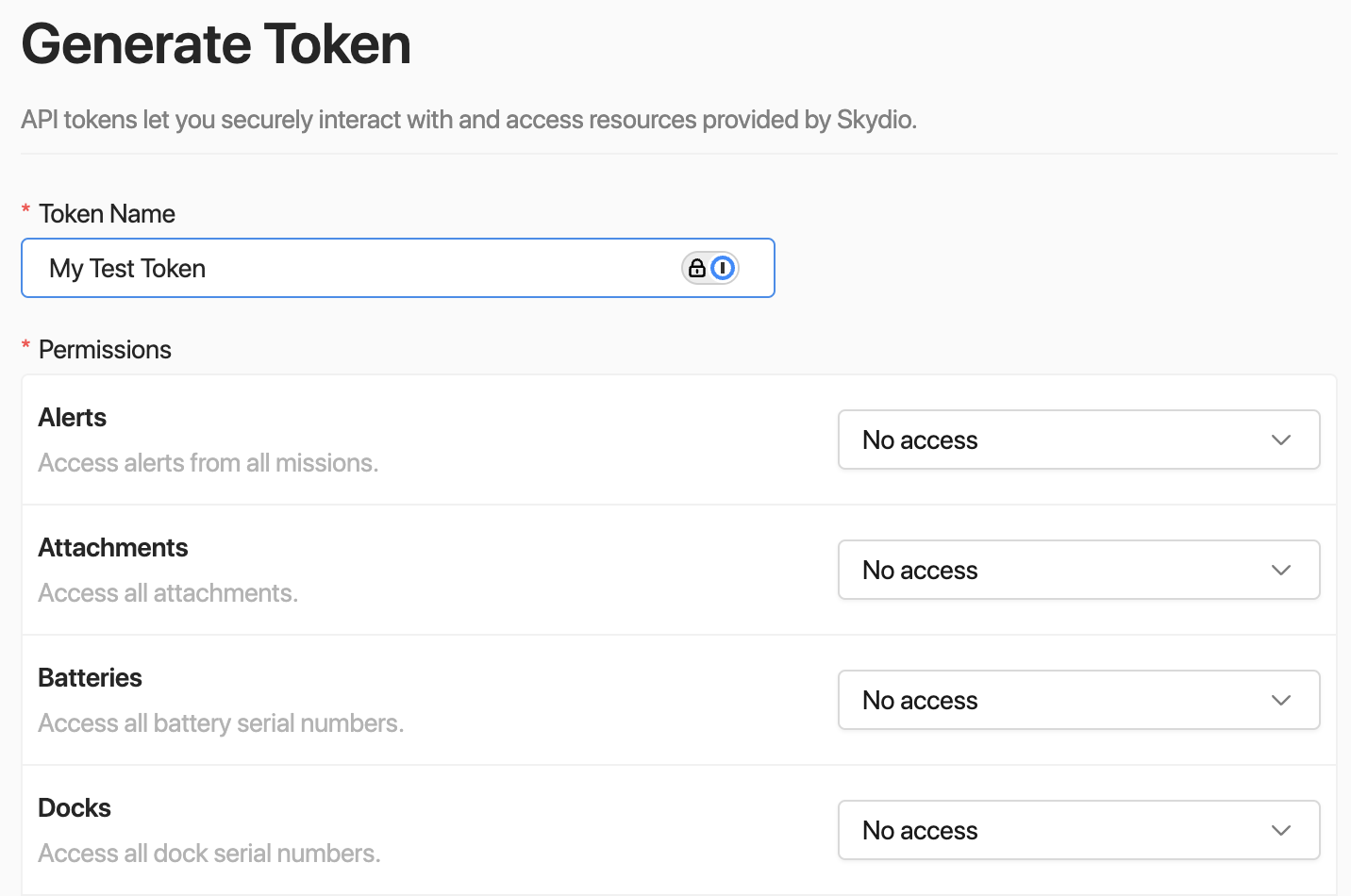
API Token permissions configuration.
Similar to granting a user roles like “Remote Pilot” vs “Cloud User,” API tokens need to be granted permissions to specific parts of our API. The permissions you see above match the permissions in our API documentation. After creating a token, you can easily go back to this page and edit the permissions.
When assigning a permission to an API Token, you are granting read (GET), write (POST, PATCH, DELETE), or read-and-write to that category of APIs (e.g. Missions). The best way to understand this is just to click around our API documentation and read it yourself.
Getting Started: Step-By-Step using the Skydio Simulator
For the rest of this guide, we will be going step-by-step through our API using a simulator to fly a flight and respond to a simulated incident. The flow will look like this:
- Generate an API Token
- Use the Vehicle API to see the list of vehicles in your organization, checking for your simulator.
- Use the Flights API to see all the flights of your simulator
- Use the Marker API to generate an incident and have your simulator respond to it.
Step 1: Generate an API Token
Create an API token in Skydio Cloud in the Settings > API Tokens > Generate Token page. You can give it any name. Grant it the following permissions:
- Vehicles: read-only
- Flights: read-only
- Markers: read and write
Click Generate when done, and you will get a 1-time chance to copy your Token Secret. The Token Secret is what goes into the CREDENTIALS section of our API documentation. Once you navigate away, the secret will disappear forever.
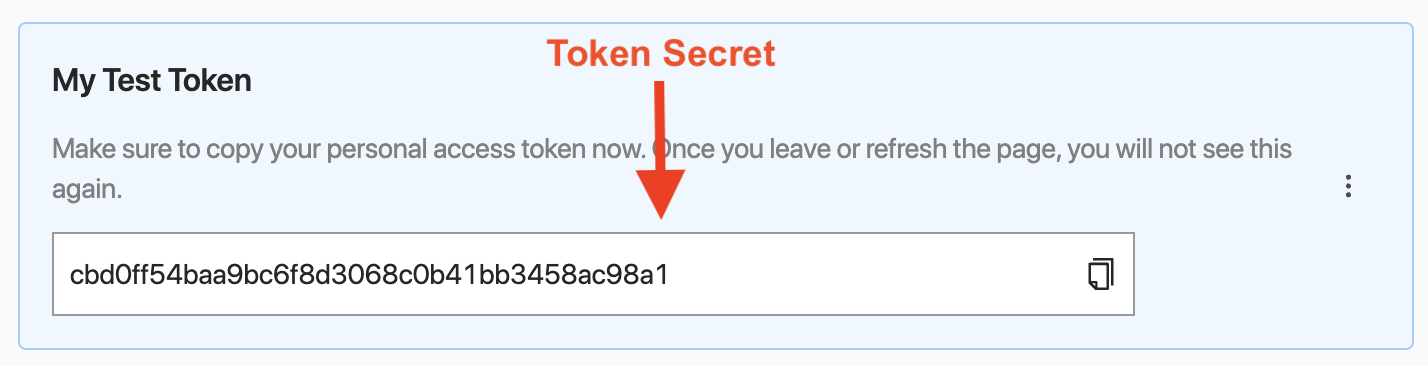
Token secret — copy yours immediately upon generating.
Step 2: Using the Get Vehicles API
A common pattern when exploring an API is to execute an API both before and after you take an action. In this case, we are going to ask Skydio Cloud for a list of all vehicles in your Organization, and execute it before and after we've added a simulator.
 API, paste your Token Secret into the CREDENTIALS Header.](https://files.readme.io/976ba0ecd2db18d085e830b3de6bb203457ddae6bdb53f3531cdcd0eba9e9148-Screenshot_2025-02-26_at_4.09.12_PM.png)
- Go to the Get Vehicles API
- Copy your Token Secret into the Credentials > Header text box
- Click the "Try It!" button
This should generate a Response beneath the "Try It!" button with a green circle and a "200" symbol. If the circle is red, this likely means either your Token Secret has a typo in it or the permissions weren't correctly granted to your token. Double check both of these.
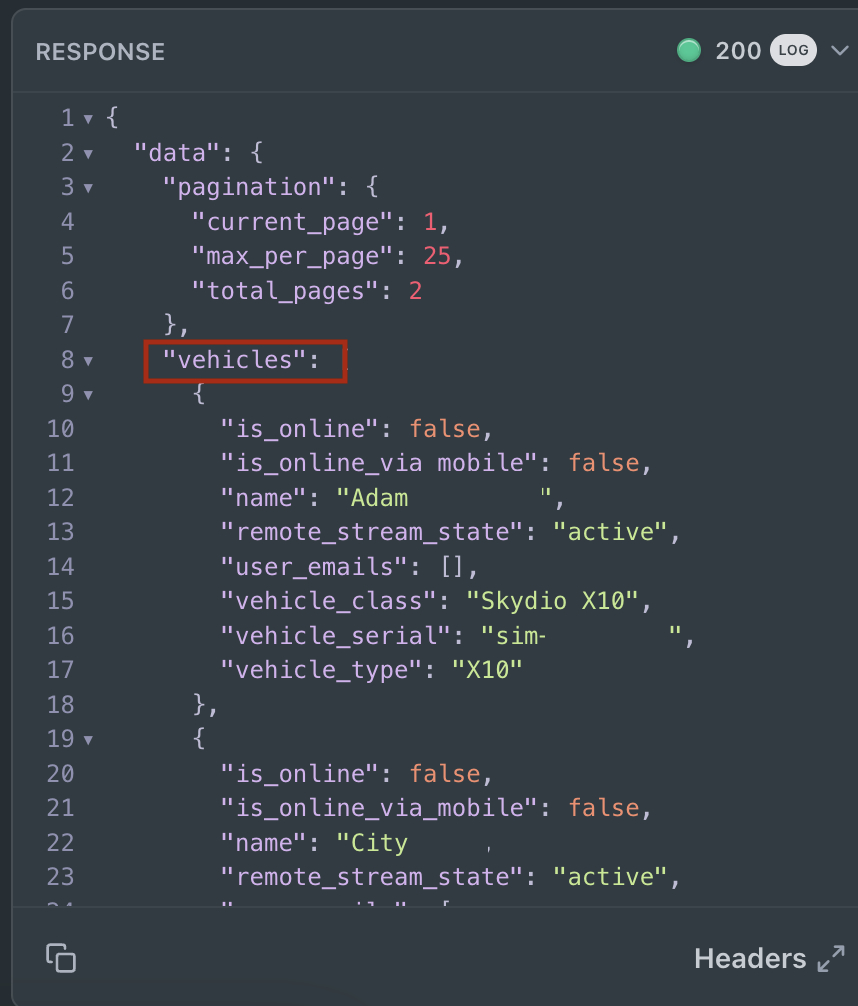
The response will appear below the the "Try It!" button in the form of a JSON string.
If you aren't familiar with JSON, you should think of it as an alternative format to CSV (excel-style spreadsheets). JSON is more like a nested to-do list, using key-value pairs and supports hierarchical data, making it more flexible for APIs.
If you look for the key vehicles, you should see a nested entry for each vehicle. In the example above, you can see two vehicles: "Adam" and "City Sim." What you see will be dependent on what vehicles are in your organization.
Now, create your simulator. You can follow this guide to create a simulator. Even before the simulator is online, you can rerun this same API, and you should see your simulator in the response. Calling this endpoint repeatedly (i.e. clicking "Try It!"), you should eventually see values like is_online change from false to true, implying that the simulator is online and working.
Copy the vehicle_serial for your vehicle (you can also see this value in the Settings > Devices > Vehicles pages). It should be in the format sim-XXXXXXXX.
Step 3: Using the Get Flight API
This step introduces a new workflow: using parameters in API calls. Most API endpoints have parameters that you can set that affect the results of calling the API. In this example, we are going to use the vehicle_serial to limit the Get Flight API to only include flights for your simulator. Paste the vehicle_serial for your vehicle in the param as shown below:
)](https://files.readme.io/ecea6372c79938a24f1a39638994a050261b15240d9be070e53bcc07ab8750e9-Screenshot_2025-02-27_at_4.01.48_PM.png)
Get flights by vehicle_serial (Get Flights API).
If you haven't flown with your simulator yet, then you will see a response similar to above with an empty flights section. Next, you can follow this guide to fly a flight. Once your flight has landed, you can call the Get Flight API again, and you should see an entry in the flights section.
The flight in this example has 8 fields. Some of these fields can be used in other query parameters. Try changing the values for takeoff_since and takeoff_before.
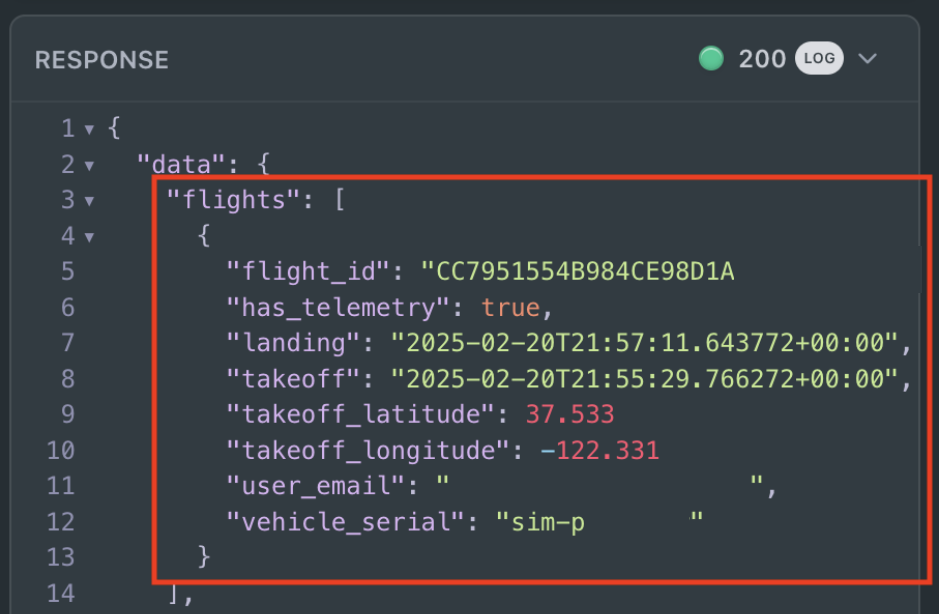
Updated "flights" JSON string after simulator has been flown.
To determine what fields are supposed to show up in the response, you can see all possibly responses in a section underneath the Query Parameters section. The numbers that you see stand for HTTP status codes that essentially correspond to:
200s (Success) everything worked as expected.
400s (Client Errors) the request was bad, or invalid (e.g. missing parameters, unauthorized, bad values, etc).
500s (Server Errors) the server had an error when processing the request.
Expanding each section shows you all the fields that should be in the JSON string response.
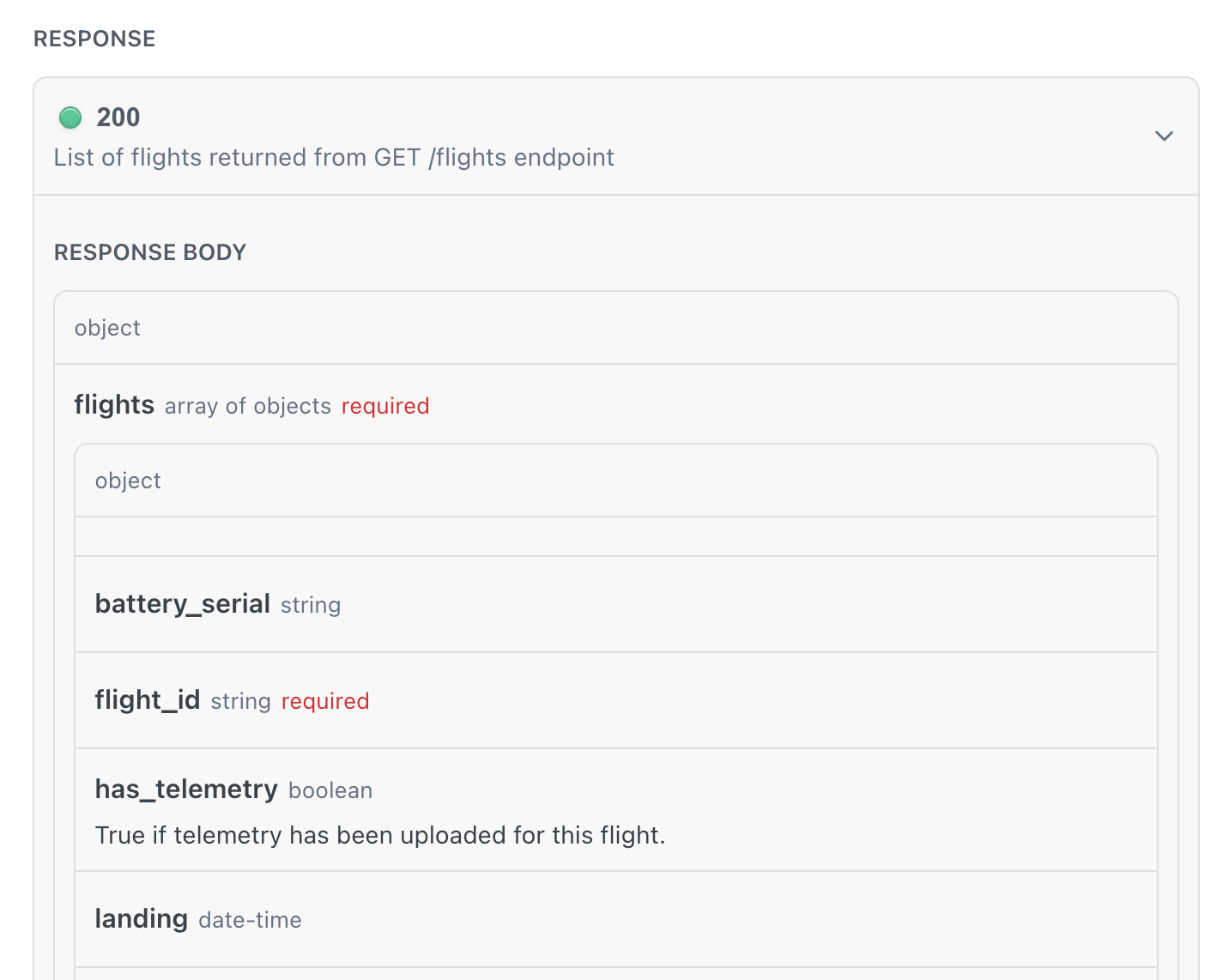
Expanded view of each section.
Step 4 Using the Upsert Markers API
In Skydio Cloud, Markers are used to represent a location of interest for a pilot to fly to. Each marker is then displayed on the map and can be easily flown to. This is one of the most common integration patterns.
Start by opening up your simulator and starting a fresh flight. Click the "Toggle sidebar" button to open up the markers side bar. You should see an empty marker list.
"Toggle sidebar" button on the top left.
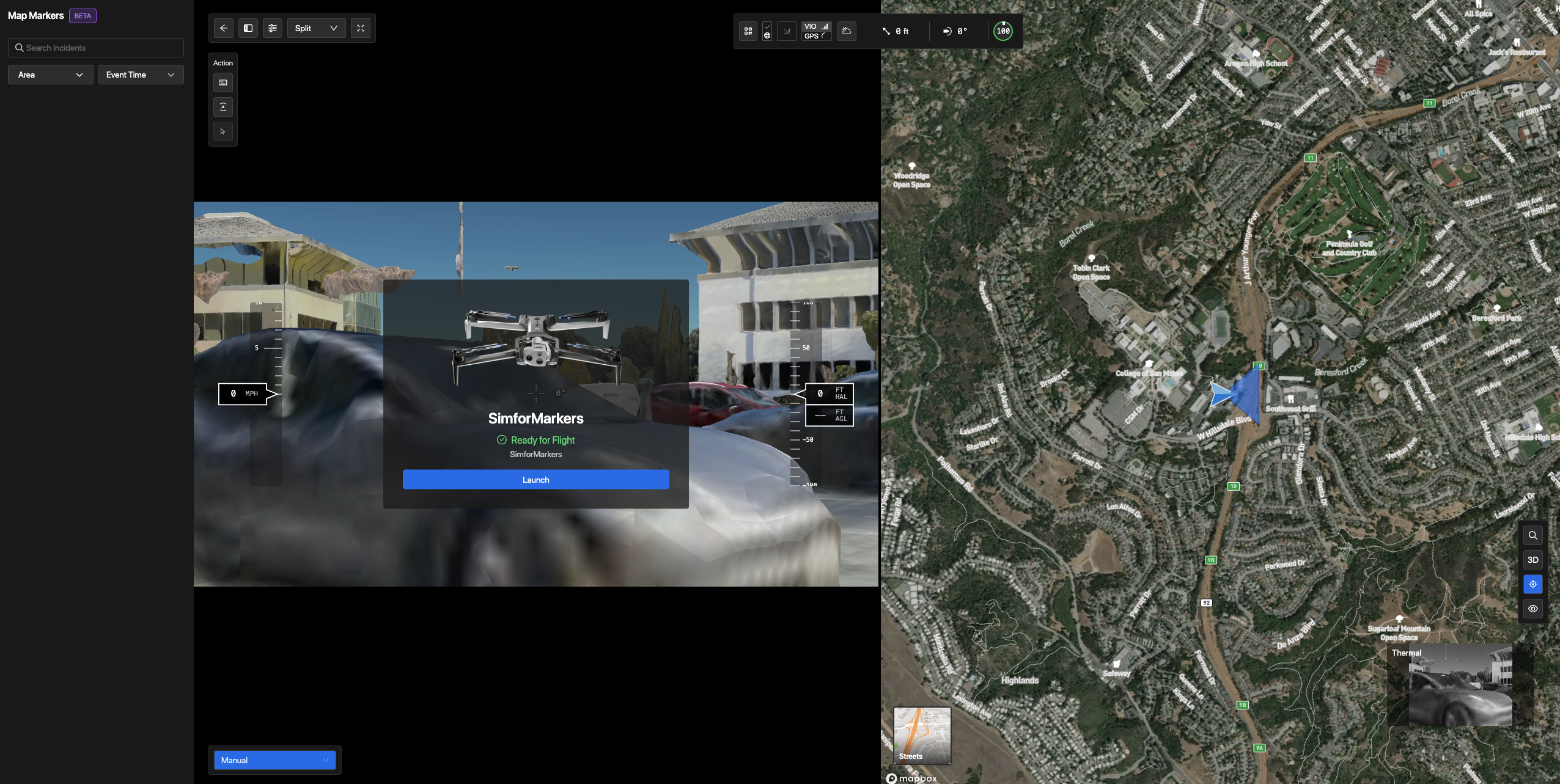
Map Markers sidebar with empty marker list.
- Go to the Upsert Marker API page
- Set the following parameters
- Description: Suspect seen driving a blue sedan
- Event Time: Use today's date, but 15-30 minutes ago.
- Use a ISO 8601 formatted timestamp
- Example: 2025-02-27T09:30:00-08:00 for Feb 27, 2005 at 9:30am PST time.
- Latitude: 37.543
- Longitude: -122.3312
Note: The latitude and longitude for this example only work for simulators in San Mateo — Clearview. If you create your simulator in a different map location you'll need to adjust the lat/long to a location closer to your simulator. - Title: A car robbery in San Mateo, CA
- Type: INCIDENT
- Click "Try it!" — this should successfully create a marker:
 with parameters filled out.](https://files.readme.io/93822166140e8f6053b800ef00c96d6c9104a89c5ef99b1d92d211a7b267356c-Screenshot_2025-02-27_at_4.08.16_PM.png)
Upsert Marker API after clicking "Try It!".
- Go back to your sim. You should now see a marker added in the left panel and on the map. Select a marker to see more details.
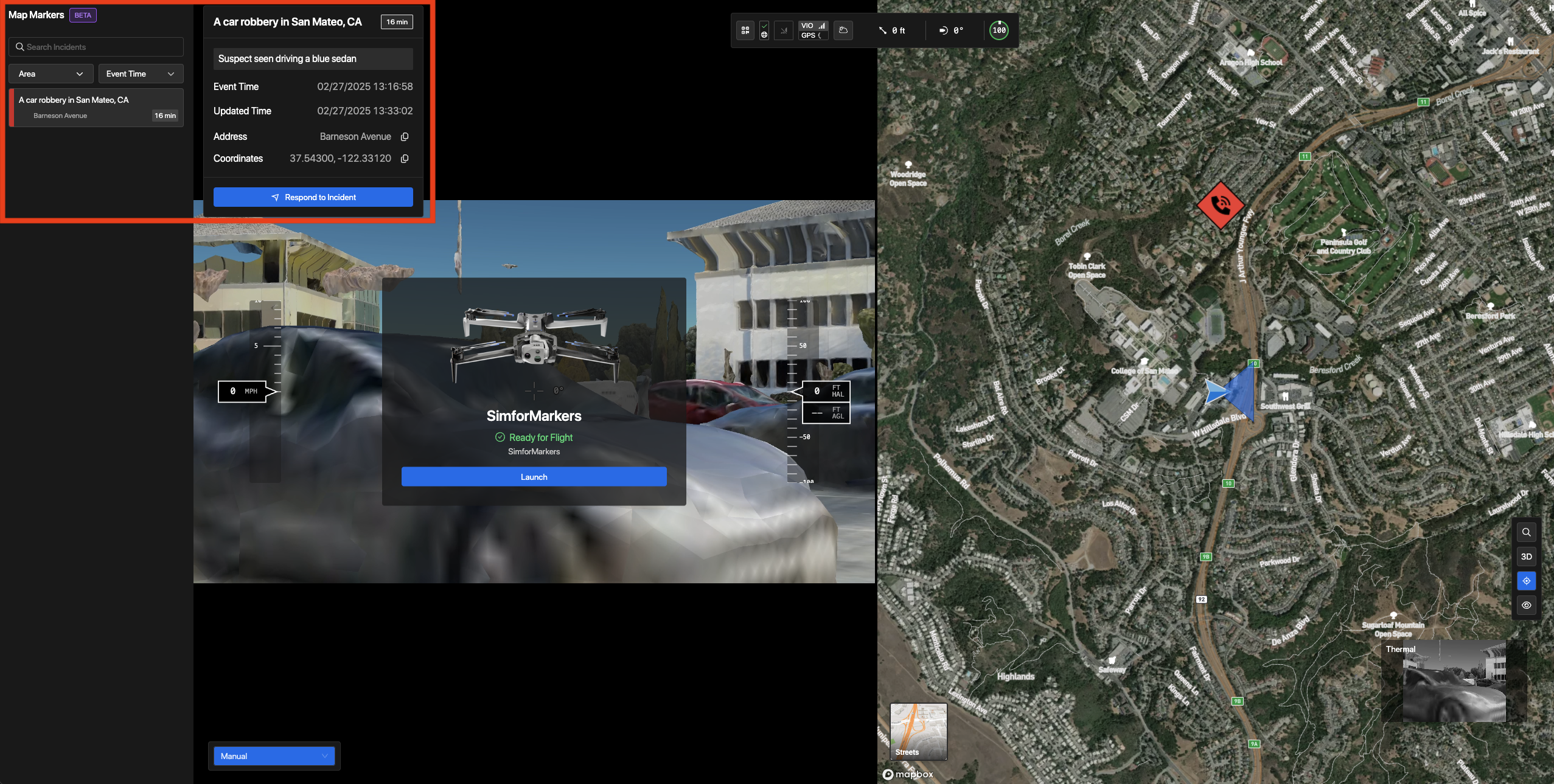
New marker shown in left panel.
- Select the marker on the left panel or on the map and click “Respond to Incident” — your drone will start flying to the scene of the incident.
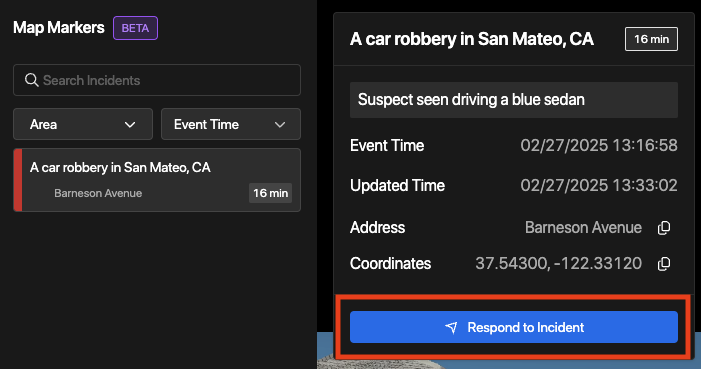
Option 1 to respond to incident - left panel
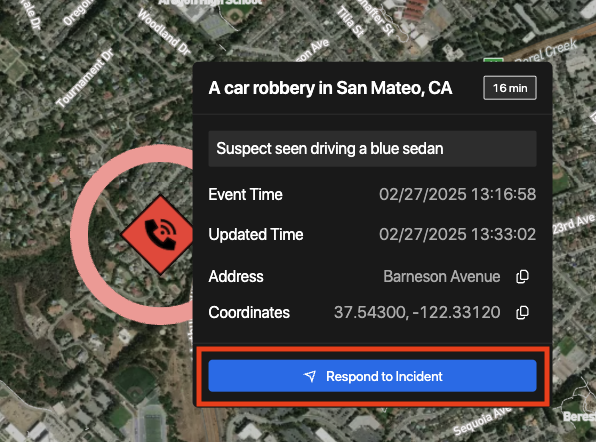
Option 2 to respond to incident - map
- As your drone flies towards the incident marker, a progress bar with time and distance to the point will be shown. The path to the incident marker will also be shown on the map.
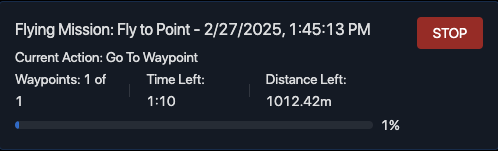
Progress bar showing time and distance left.
Updated about 1 year ago